MySQL 8.4 Release Notes
软件包位于磁盘映像内(.dmg) 文件,您首先需要通过在 Finder 中双击其图标来安装该文件。然后,它应该装载映像并显示其内容。The package is located inside a disk image
(.dmg) file that you first need to mount by
double-clicking its icon in the Finder. It should then mount the
image and display its contents.
Note
在继续安装之前,请务必使用 MySQL 管理器应用程序(在 macOS 服务器上)、首选项窗格或命令中的mysqladmin shutdown 来停止所有正在运行的 MySQL 服务器实例Before proceeding with the installation, be sure to stop all running MySQL server instances by using either the MySQL Manager Application (on macOS Server), the preference pane, or mysqladmin shutdown on the command line.
要使用软件包安装程序安装 MySQL:To install MySQL using the package installer:
下载包含 MySQL 软件包安装程序的磁盘映像 (
.dmg) 文件(社区版本位于此处)。双击该文件以挂载磁盘映像并查看其内容。Download the disk image (.dmg) file (the community version is available here) that contains the MySQL package installer. Double-click the file to mount the disk image and see its contents.双击磁盘中的 MySQL 安装程序包。它根据您下载的 MySQL 版本命名。例如,对于 MySQL 服务器 8.4.9,它可能被命名为
mysql-8.4.9-macos-。Double-click the MySQL installer package from the disk. It is named according to the version of MySQL you have downloaded. For example, for MySQL server 8.4.9 it might be named10.13-x86_64.pkgmysql-8.4.9-macos-.10.13-x86_64.pkg初始向导介绍屏幕引用要安装的 MySQL 服务器版本。单击开始安装。The initial wizard introduction screen references the MySQL server version to install. Click to begin the installation.
MySQL 社区版显示相关 GNU 通用公共许可证的副本。单击,然后继续。The MySQL community edition shows a copy of the relevant GNU General Public License. Click and then to continue.
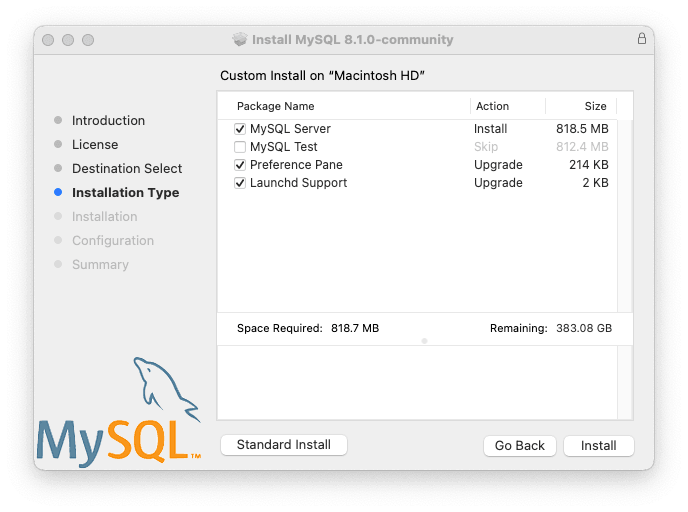
在安装类型页面中,您可以单击使用所有默认值执行安装向导,单击更改要安装的组件(MySQL 服务器、MySQL 测试、首选项)窗格、Launchd Support - 默认情况下启用除 MySQL Test 之外的所有选项)。From the Installation Type page you can either click to execute the installation wizard using all defaults, click to alter which components to install (MySQL server, MySQL Test, Preference Pane, Launchd Support -- all but MySQL Test are enabled by default).
Note尽管选项可见,但安装位置无法更改。Although the option is visible, the installation location cannot be changed.
点击安装 MySQL 服务器。如果升级当前的 MySQL Server 安装,则安装过程到此结束,否则请按照向导的附加配置步骤安装新的 MySQL Server。Click to install MySQL Server. The installation process ends here if upgrading a current MySQL Server installation, otherwise follow the wizard's additional configuration steps for your new MySQL Server installation.
成功安装新的 MySQL Server 后,通过定义 root 密码并在启动时启用(或禁用)MySQL 服务器来完成配置。After a successful new MySQL Server installation, complete the configuration by defining the root password and enabling (or disabling) the MySQL server at startup.
为 root 用户定义密码,并在配置步骤完成后切换 MySQL Server 是否应启动。Define a password for the root user, and also toggle whether MySQL Server should start after the configuration step is complete.
摘要是最后一步并引用成功且完整的 MySQL 服务器安装。 向导。Summary is the final step and references a successful and complete MySQL Server installation. the wizard.
MySQL 服务器现已安装。如果您选择不启动 MySQL,则可以从命令行使用 launchctl,或者使用 MySQL 首选项窗格单击“启动”来启动 MySQL。有关其他信息,请参阅第 2.4.3 节“安装和使用 MySQL 启动守护程序”和第 2.4.4 节, “安装和使用 MySQL 首选项窗格”。使用 MySQL 首选项窗格或 launchd 将 MySQL 配置为在启动时自动启动。MySQL server is now installed. If you chose to not start MySQL, then use either launchctl from the command line or start MySQL by clicking "Start" using the MySQL preference pane. For additional information, see Section 2.4.3, “Installing and Using the MySQL Launch Daemon”, and Section 2.4.4, “Installing and Using the MySQL Preference Pane”. Use the MySQL Preference Pane or launchd to configure MySQL to automatically start at bootup.
使用软件包安装程序进行安装时,文件将安装到 /usr/local 中与安装版本和平台名称匹配的目录中。例如,安装程序文件 mysql-8.4.9- 将 MySQL 安装到 macos10.15-x86_64.dmg/usr/local/mysql-8.4.9-macos10.15-x86_64/ 中,并带有指向 /usr/local/mysql。下表显示了此 MySQL 安装目录的布局。When installing using the package installer, the files are
installed into a directory within /usr/local
matching the name of the installation version and platform. For
example, the installer file
mysql-8.4.9-
installs MySQL into
macos10.15-x86_64.dmg/usr/local/mysql-8.4.9-macos10.15-x86_64/
with a symlink to
/usr/local/mysql. The following table shows
the layout of this MySQL installation directory.
Note
macOS 安装过程不会创建或安装示例 my.cnf MySQL 配置文件。The macOS installation process does not create nor install a
sample my.cnf MySQL configuration file.
表 2.8 macOS 上的 MySQL 安装布局Table 2.8 MySQL Installation Layout on macOS
| 目录Directory | 目录内容Contents of Directory |
|---|---|
binbin |
mysqld 服务器、客户端和实用程序mysqld server, client and utility programs |
datadata |
日志文件、数据库,其中 /usr/local/mysql/data/mysqld.local.err 是默认错误日志Log files, databases, where
/usr/local/mysql/data/mysqld.local.err
is the default error log |
docsdocs |
帮助文档,例如发行说明和构建信息Helper documents, like the Release Notes and build information |
includeinclude |
包含(标题)文件Include (header) files |
liblib |
库Libraries |
manman |
Unix 手册页Unix manual pages |
mysql-testmysql-test |
MySQL 测试套件(使用安装程序包 (DMG) 时,在安装过程中默认禁用“MySQL 测试”)MySQL test suite ('MySQL Test' is disabled by default during the installation process when using the installer package (DMG)) |
shareshare |
其他支持文件,包括错误消息、 dictionary.txt,以及重写 SQLMiscellaneous support files, including error messages,
dictionary.txt, and rewriter SQL |
support-filessupport-files |
支持脚本,例如 mysqld_multi.server、mysql.server 和 mysql-log-rotate。Support scripts, such as mysqld_multi.server,
mysql.server, and
mysql-log-rotate. |
/tmp/mysql.sock/tmp/mysql.sock |
MySQL Unix 套接字的位置Location of the MySQL Unix socket |