MySQL 8.4 Release Notes
MySQL 安装包包含一个 MySQL 首选项窗格,可让您在 MySQL 安装启动期间启动、停止和控制自动启动。The MySQL Installation Package includes a MySQL preference pane that enables you to start, stop, and control automated startup during boot of your MySQL installation.
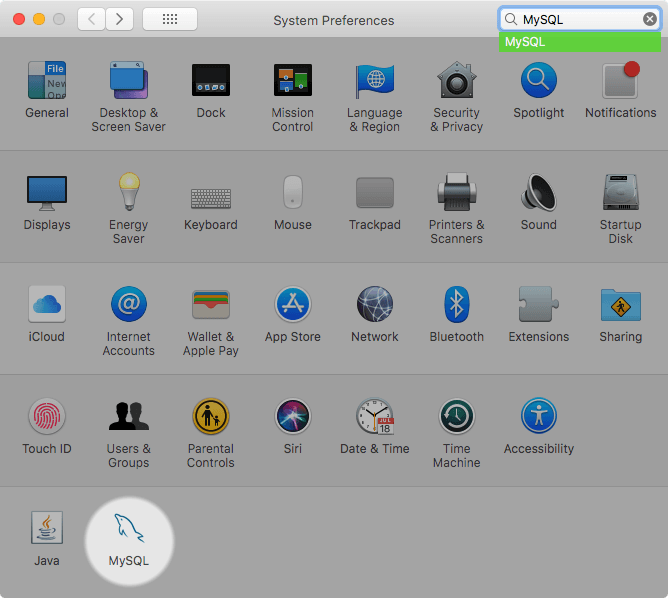
此首选项窗格默认安装,并列在系统的系统首选项下This preference pane is installed by default, and is listed under your system's System Preferences window.
MySQL 首选项窗格使用与安装 MySQL Server 相同的 DMG 文件进行安装。通常,它与 MySQL 服务器一起安装,但也可以单独安装。The MySQL preference pane is installed with the same DMG file that installs MySQL Server. Typically it is installed with MySQL Server but it can be installed by itself too.
要安装 MySQL 首选项窗格:To install the MySQL preference pane:
完成安装 MySQL 服务器的过程,如第 2.4.2 节“使用本机在 macOS 上安装 MySQL”中所述。包”。Go through the process of installing the MySQL server, as described in the documentation at Section 2.4.2, “Installing MySQL on macOS Using Native Packages”.
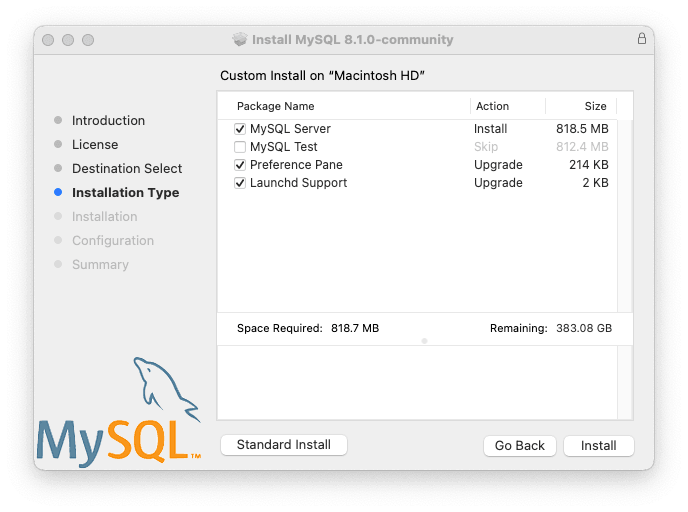
在安装类型步骤中单击。 “首选项窗格”选项列在那里并默认启用;确保它没有被取消选择。可以选择或取消选择其他选项,例如 MySQL 服务器。Click at the Installation Type step. The "Preference Pane" option is listed there and enabled by default; make sure it is not deselected. The other options, such as MySQL Server, can be selected or deselected.
完成安装过程。Complete the installation process.
Note
MySQL 首选项窗格仅启动和停止从已安装在默认位置的 MySQL 软件包安装中安装的 MySQL 安装。The MySQL preference pane only starts and stops MySQL installation installed from the MySQL package installation that have been installed in the default location.
安装 MySQL 首选项窗格后,您可以使用此首选项控制 MySQL 服务器实例Once the MySQL preference pane has been installed, you can control your MySQL server instance using this preference pane.
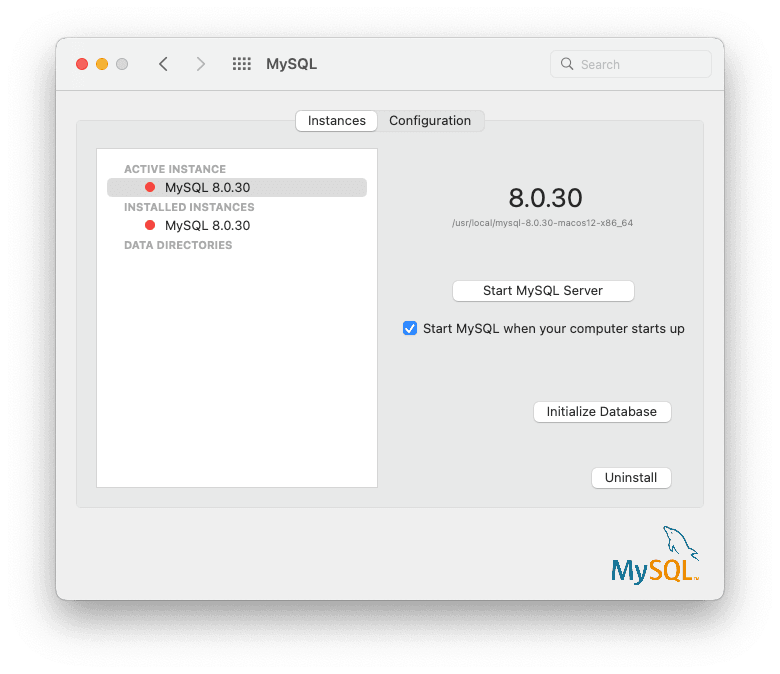
实例页面包含启动或停止 MySQL 的选项,重新创建 data/ 目录。 卸载 MySQL Server 以及可选的 MySQL 首选项面板和 launchd 信息。The Instances page includes an option to
start or stop MySQL, and recreates the data/
directory. uninstalls MySQL
Server and optionally the MySQL preference panel and launchd
information.
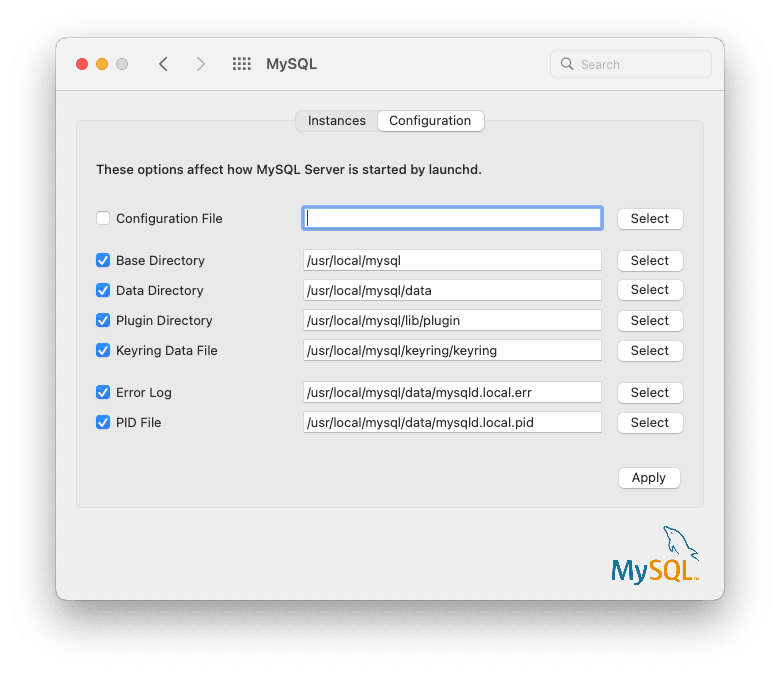
配置页面显示 MySQL 服务器选项,包括 MySQL 配置文件的路径。The Configuration page shows MySQL Server options including the path to the MySQL configuration file.
The MySQL Preference Pane shows the current status of the MySQL server, showing stopped (in red) if the server is not running and 运行中 (in green) if the server has already been started. The preference pane also shows the current setting for whether the MySQL server has been set to start automatically.The MySQL Preference Pane shows the current status of the MySQL server, showing stopped (in red) if the server is not running and running (in green) if the server has already been started. The preference pane also shows the current setting for whether the MySQL server has been set to start automatically.